
How to use MoneyPrinterTurbo: step-by-step tutorial
Updated November 3, 2026
To use MoneyPrinterTurbo, type a video topic (or paste your own script), choose the language, length, size, voice, caption style and music, then click Generate. It writes the script, finds matching stock clips, records the voiceover, adds captions and music, and renders an MP4 you can download. Online this takes no setup; a one-minute video costs 48 credits, and new accounts get 60.
What you need
- A browser on a computer or phone. Nothing to install and no API keys.
- A Google or GitHub account to sign in.
- A topic or a script. Broad topics ("why sleep matters") work best; very niche ones need your own script (see the tips below).
How to make a video with MoneyPrinterTurbo, step by step
These steps use MoneyPrinterTurbo Online. The self-hosted GitHub version has a similar WebUI but needs installing first.
1Open the studio and sign in
Go to moneyprinterturbo.app, click Open Studio and sign in with Google or GitHub. You land on the MoneyPrinterTurbo workbench with Stock Video selected.
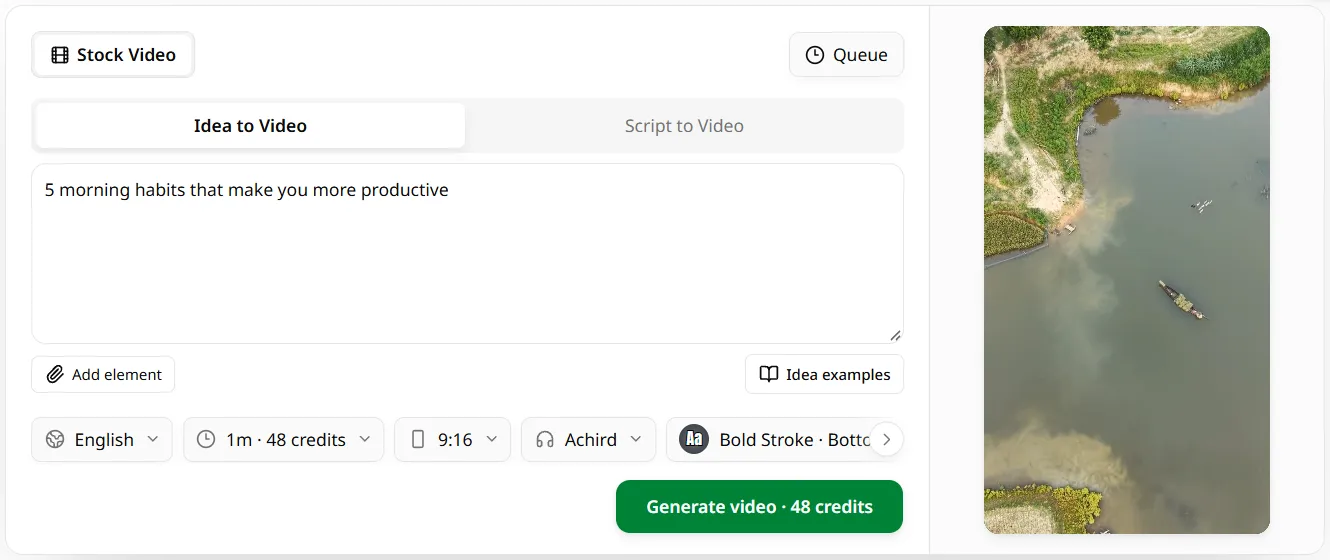
2Type your topic under Idea to Video
Describe the video in a sentence, for example "5 morning habits that make you more productive". Add any names, facts or tone that matter. Stuck? Idea examples fills the box with ready topics such as Scary stories, History, True Crime or Stoic Motivation.
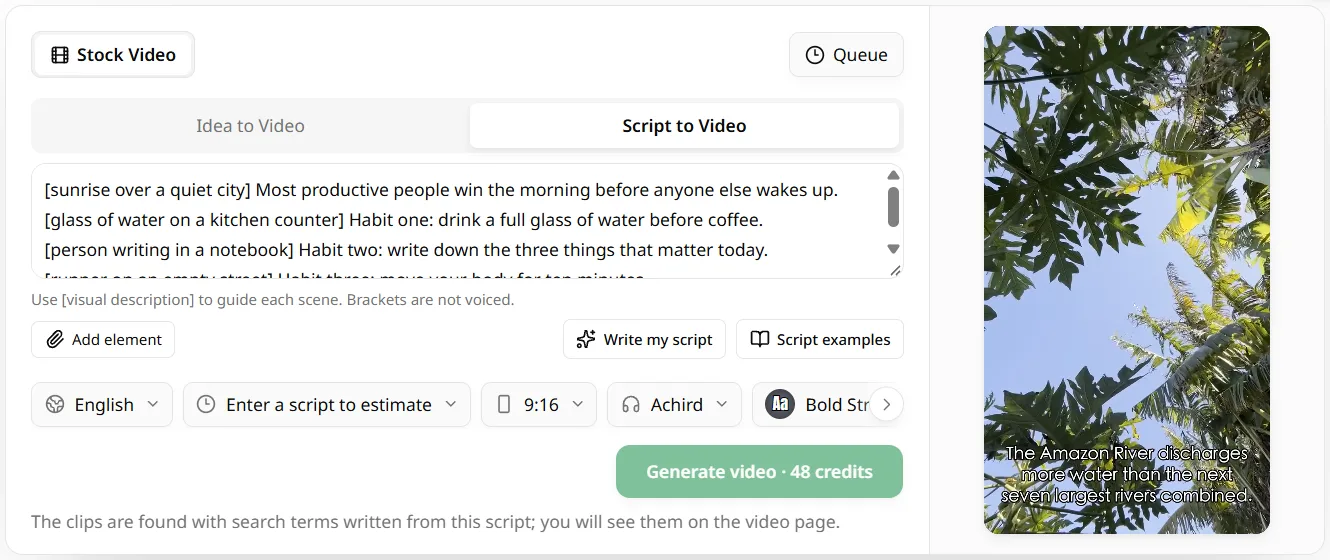
3Or paste your own script under Script to Video
Switch to Script to Video to have your narration read word for word. Put a short scene description in square brackets before each line, such as [glass of water on a kitchen counter]: the brackets are not read aloud, they tell MoneyPrinterTurbo what footage to look for. Write my script drafts one for you if you only have a topic.
4Choose language, length, size, voice, captions and music
The settings row sits under the text box: pick one of 17 languages, a target length from 15 seconds up to your plan's limit, 9:16, 16:9 or 1:1, a voice (34 English voices, each with a sample), a caption style and position, and music (picked automatically, chosen from the library, AI-generated, or none).
5Click Generate video
The button shows the exact credit cost first, for example 48 credits for one minute. The video joins the queue and renders on the server, so you can close the tab; videos from paid accounts start first.
6Download the finished MP4
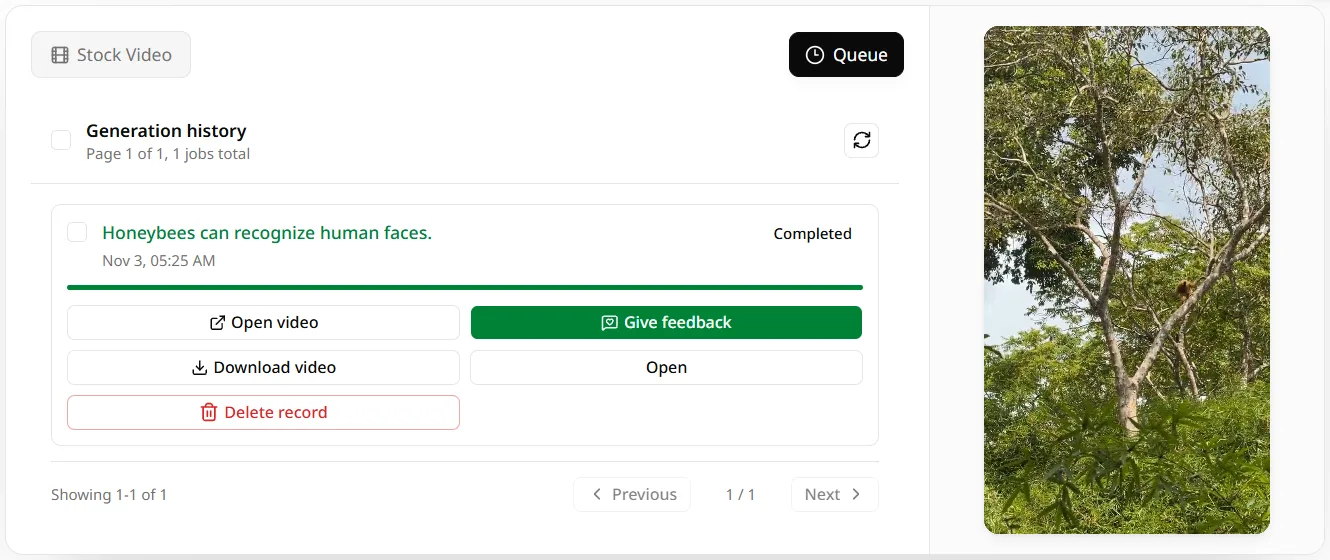
Open Queue (or My Videos in the sidebar). When the job says Completed, click Download video, or Open video to watch it first. Then upload it to YouTube Shorts, TikTok or Instagram Reels.
Every setting explained
| Setting | Options | What to pick |
|---|---|---|
| Mode | Idea to Video, Script to Video | Idea for speed; Script when the wording or the footage must be exact |
| Language | 17, including English, Spanish, Portuguese, Hindi, Arabic, Japanese and Chinese | The language of your audience; the script and voice follow it |
| Target length | 15 seconds up to 5 to 30 minutes, depending on plan | 30 to 60 seconds for Shorts and Reels |
| Video size | 9:16, 16:9, 1:1 | 9:16 for Shorts, TikTok and Reels; 16:9 for YouTube |
| Voice | 34 English voices, male and female, with samples | Play a few samples and match the topic's mood |
| Captions | Top, center, bottom or none; styles such as Bold Stroke, Red Highlight, Karaoke | Bottom with a bold style reads best on phones |
| Music | Auto, library, AI music, no music | Auto unless you need a specific mood |
Tips for better MoneyPrinterTurbo videos
The most common complaint about MoneyPrinterTurbo is footage that does not match the words, for example squirrels on screen while the voice talks about opossums. It happens because clips come from stock libraries, and niche subjects have little footage. These habits fix most of it:
- Choose topics stock libraries cover well: habits, money, health, travel, nature, history, motivation.
- For niche or technical subjects, use Script to Video and put a [scene description] before each line that names something filmable, such as [person reading charts on a laptop] instead of [validator node].
- Keep sentences short. One idea per line gives each clip a clear search term.
- Name the visuals you want in the topic itself: "the history of coffee, with cafés, beans and baristas" works better than "coffee history".
- Start with 30 to 60 seconds. Short videos cost fewer credits and are easier to check before you scale up.
- Check the first video on your phone with the sound on before posting a batch.
Example videos made with MoneyPrinterTurbo
Each of these came from a one-line topic with the default settings.
Using the self-hosted GitHub version instead
The open-source project works the same way once installed: open the WebUI, enter a topic, set video, audio and subtitle options, then click Generate Video. The difference is setup: Python 3.11+ or Docker, and your own API keys for the script model and stock footage.
How to use MoneyPrinterTurbo: FAQ
How long does MoneyPrinterTurbo take to make a video?
It depends on the video length and on how busy the queue is. Videos from paid accounts start ahead of free ones, which at busy times saves a wait of two hours or more. You can close the tab while it renders and come back to My Videos.
How much does one video cost?
The Generate button shows the price before you start. With your own script, one credit buys about 1.25 seconds of video, so one minute is 48 credits; an AI-written script adds a few credits. New accounts get 60 credits.
Can I use my own script?
Yes. Switch to Script to Video and paste it; the AI voice reads it word for word. Square-bracket notes such as [city skyline at night] steer the footage and are not read aloud.
Why does the footage not match my script?
Clips come from stock libraries, so niche subjects often have no exact footage. Use Script to Video with a [scene description] before each line, and describe things that can be filmed.
Can I make long YouTube videos, not just Shorts?
Yes. Choose 16:9 and a longer target length. Single videos go up to 5 minutes on Starter, 15 on Basic and Pro, and 30 on Max.
Is MoneyPrinterTurbo good for faceless YouTube channels?
It is built for faceless videos: no presenter, just footage, voiceover and captions. It works best for broad topics and channels that post often; for niche subjects plan to write your own scripts.
Make your first MoneyPrinterTurbo video
Sign in, type a topic and download a finished short video. Your 60 welcome credits cover a one-minute test.